Shanghai Chengcheng Information Technology Co., Ltd. · The team has been established for 20 years, dedicated to R&D.
Domestic Xinchuang · Linux teaching software

Linux teaching software
cc-class Xinchuang Classroom Teaching and Computer Lab Management

A single set covering before, during, and after class Linux teaching software — cc-class runs natively on UOS / Kylin / Ubuntu, covering the full workflow from screen broadcast, interactive Q&A, and courseware push to online exams, homework collection/distribution, attendance check-in, and classroom management. Teachers and students share one installer, with roles automatically identified by computer name, making teaching management in Xinchuang computer labs as effortless as in Windows labs.

One Linux teaching software suite that runs through the entire class

More than screen broadcasting: it builds every step of a lesson — from preparation and teaching to wrap-up — into one piece of software

Before Class

Lesson prep and environment setup

The courseware library manages frequently used courseware; pick a teaching channel to start class, and student machines fall into place automatically with the cloud desktop image.

Courseware LibraryTeaching channelDelivered with the image
During Class

Interactive teaching and control

Screen broadcasting + voice, courseware push, buzz-in quizzing, random roll-call, plus blackout and internet lockdown to keep order.

Screen BroadcastBuzz-in and votingClassroom Control
In-Class Assessment

Online exams and check-in

Import a question bank to distribute exams, with countdown auto-submission and scoring; start check-in to record the attendance list automatically.

Online examsAuto Collect SubmissionsCheck-In & Attendance
After Class

Homework collection and statistics

Collect assignments, reports and exam files in one click, archived by class / student ID; export classroom data reports with a single click.

Assignment CollectionArchiveData Reports

The teacher's "teaching console" on the Linux desktop

The image below shows the cc-class teacher toolbar, with teaching demonstration, classroom interaction, remote commands, exams, and file distribution lined up in a row—one click applies them to every student machine in the class.

Turn every action of the whole lesson into a single row of buttons

The cc-class teacher-side top toolbar consolidates core teaching actions in one place: screen broadcast, student presentation, video live stream, network cinema, random roll call, interaction, remote command, exam, file distribution, and assignment collection — acting on all students by default, with right-click access for individual student operations.

  • Runs natively on Linuxdomestic IT stackRuns directly on the UOS / Kylin / Ubuntu desktop, with features and interface identical to the Windows version.
  • Push coursewareSelect a PPT / PDF / image / MP4 and push it to all student machines in one click, opening automatically
  • Classroom InteractionClass quizzes, polls, peer review, and reward leaderboards keep the class lively
  • Remote CommandsStart programs, open web pages, close processes, and power machines on/off remotely on student devices.
  • AI AssistantSmart question generation and subjective-answer grading ease the burden of lesson prep and marking
  • Desktop RecordingRecord the teacher's screen to a file in one click to build up micro-lesson resources
Linux teaching software cc-class teacher-end teaching toolbar
cc-class Teacher Client · Teaching Toolbar

Real interface of Linux teaching software

The actual interface of cc-class for teaching, attendance and control under Linux / Xinchuang environments

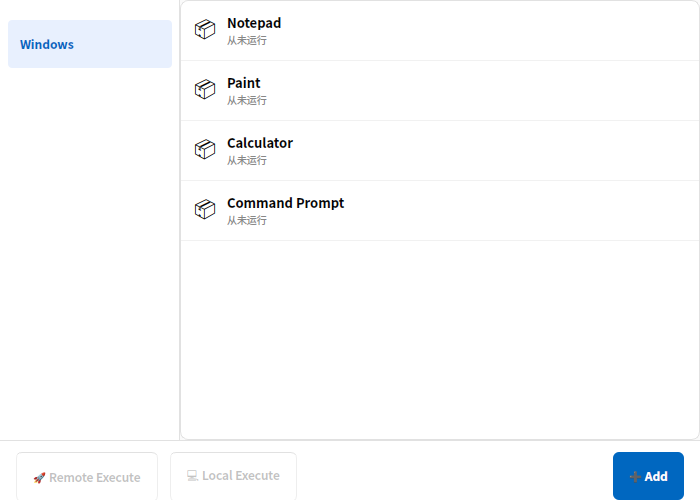
cc-class Launch applications via remote command
Remote CommandsLaunch a designated program, open a web page or end a process on all student machines.
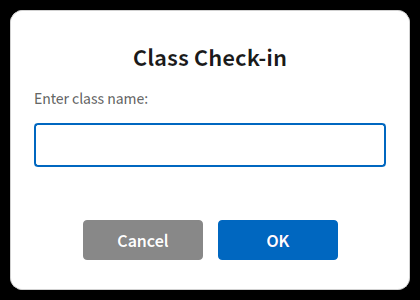
cc-class Start sign-in by entering the class name
Check-In & AttendanceStart check-in with one click; students enter their name and ID, automatically compiled into a roster.
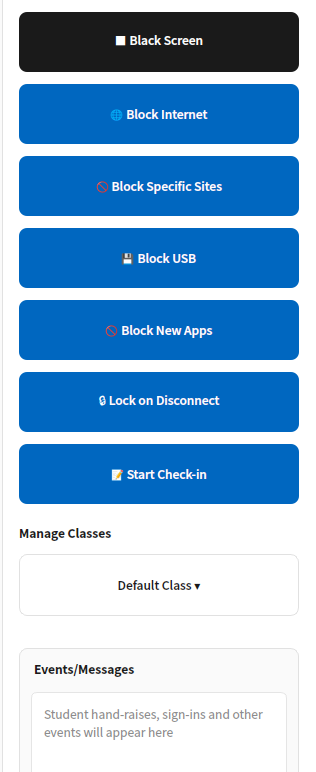
cc-class classroom management panel
Classroom ControlBlack screen, internet block, USB block, lock-on-disconnect — manage discipline with a single row of switches.

Full overview of interactive teaching features

Teaching, learning, practice, testing, assessment and management — all covered by one suite of Linux teaching software

Screen broadcasting / presentation

Project the teacher's screen, students' screens, live video and the network cinema to the whole class in multiple presentation modes.

Classroom buzz-in / polling

A quick-answer button shows who pressed first; single- and multiple-choice voting displays tallies in real time, enlivening the classroom.

Random Roll Call

Randomly pick a student with a scrolling animation, and demonstrate their screen to the whole class in one click.

Push courseware

Push PPT / PDF / images / video to all student machines in one click, opening automatically.

Online exams

Import a CSV question bank to distribute exams, with five question types and countdown auto-submission, scoring and export.

Assignment Distribution & Collection

Distribute materials with one click and collect homework automatically — archived by class / student ID with resumable transfer.

Check-In & Attendance

Starting check-in automatically collects name, student ID and class, with a live list that can be exported to Excel.

Remote commands / power

Remotely launch programs, open web pages and end processes; remotely shut down, restart and Wake-on-LAN.

Discussion / Messages

Medical cloud-desktop solution — vDisk smart-hospital desktop management —

AI Assistant

Smart question generation and grading of open-ended answers to support lesson prep and marking, boosting teaching efficiency.

Classroom Control

Blackout for silence, internet ban, website blocking, USB disabling, network-cut screen lock, and prevention of launching new apps.

Classroom data reports

Track classroom data such as hand-raising, quick answers, voting and chat, with a reward leaderboard to motivate students.

Classroom interaction, exam assignments, and attendance: detailed function descriptions

Covers pre-class courseware push, in-class interaction, end-of-class exam assignments and attendance check-in, totaling 43 items, each with a one-sentence description of how to use and what the student side will see.

4Feature Grouping
43feature by feature
2Client (Teacher Client / Student Client)
1Universal installation package

Classroom Interaction 16 项

Transform "teacher talks, students listen" into interactive sessions: roll call, quick answer, voting, discussion, push courseware, send bullet comments; most actions are delivered to the whole class in real time.

Random Roll Call
Randomly select a student with a scrolling animation, which is synchronized on the student side; after selection, one-click to broadcast the student's screen to the whole class.
Classroom Quick Answer
A quick-answer button appears on the student side; whoever presses it first is seen by the teacher as the first to answer
Classroom Polling
Create single-choice or multiple-choice poll questions; students answer and teachers see vote counts in real time
Peer Review
Initiate peer grading among students
Discussion / Chat
Classroom chat room supporting text, emojis, images, files, screenshots. Supports Ctrl+V to paste images and drag-and-drop to send.
Allow / Prohibit Student Discussion
One-click control for students' speaking permission
Group discussion management
Create and manage discussion groups, can switch between group discussion and full-group discussion
Push courseware
Select courseware (ppt/pptx/pdf/doc/docx/txt/image/mp4/avi/mp3/zip/rar/7z) and push with one click to selected student PCs, then auto-open
Courseware resource library
Manage common courseware library for easy repeated distribution
Course objectives and outline
Set the title, objectives, and outline of this lesson, visible to students
Reward Leaderboard
Display student classroom points ranking
Classroom data reports
Collect classroom data such as hand-raising, quick response, voting, and chat
Send Danmaku
Input text and broadcast a scrolling bullet screen to the entire class
Hand raising and help requests
The student toolbar has a one-click hand-raising button; the teacher's end shows the hand-raising status on the student's card; the help request entry can be toggled by the teacher.
AI-powered question generation
Generate questions by knowledge point, question type, and difficulty, and add them to a test paper with one click.
AI grading of subjective questions
Provide scoring and comment suggestions for students' subjective answers, and let the teacher review and finalize the scores.

Online exams 8 项

Complete chain from question creation, distribution, timing, collection, scoring, to report export. Teachers can see each student's progress in real time.

Graphical question editor
Create and modify questions directly on the teacher interface, no need to pre-write in a table and import.
Import Exam Papers (CSV)
Import question banks filled in according to a template at once; the template can be downloaded from the exam management panel.
Five question types
Single choice, multiple choice, true/false, fill-in-the-blank, short answer
Start / End Exam
Tests are distributed to selected students and timing starts; upon completion, the exam stops, papers are collected, and scores are generated.
Exam duration and countdown
Set the exam duration; the student end displays the subject, class, and countdown at the top; when time is up, the exam is automatically submitted and closed.
Real-time progress monitoring of quiz answers
The exam management panel displays in real time each student's answer progress (answered / total questions) and score
Statistics by question accuracy
View the class's correct answer rate for each question, so you know at a glance which question to focus on during review.
Export scores to Excel
Export exam results to a table with one click

File distribution and assignment collection 13 项

One-click distribution of materials to designated locations on each machine; homework collected per student and automatically archived; progress visible per machine; the slow one does not hold back the whole class.

File Distribution
Add files (drag-and-drop supported) → Select target path on student PCs (Desktop / C: / D: / E: / Custom) → Optionally set to auto-run after distribution with parameters.
Batch deployment of multiple drives
Select files from multiple drives and paths on the teacher's PC at once, and batch deliver them to the same target directory on student PCs.
HTTP point-to-multipoint direct transfer
Distribution uses a separate HTTP channel. Broadcasting and distributing simultaneously do not affect each other.
Three Sending Methods
Broadcast, multicast, unicast selectable from a dropdown; choose one based on the computer lab network.
Adaptive speed limiting
AIMD token bucket automatically adjusts the rate based on real-time conditions, and will not use up the full bandwidth and crash the entire class.
Segmented reconciliation and missing block reissue
Check section by section, fill in what's missing, won't get stuck at 99%.
Distribution progress visible per endpoint
A dialog box shows the receiving progress and status of each file on each student machine. Failed items can be resent.
Distribution window can be minimized
Minimize the window; the transfer continues in the background, allowing the teacher to continue lecturing.
Student endpoint receiving list
The student machine pops up a receipt list; click to directly open the received file.
Assignment Collection
Initiate a naming collection task, the student toolbar's 'Submit Assignment' is activated, and the teacher side can view each student's submission status in real time and download.
Archiving by User
Submitted content is archived in separate directories by student ID/name/computer name+IP. The teacher can package it into a ZIP with one click.
Assignment submission content
Students can instantly take screenshots, upload images, or drag in assignment files, and submit them all together.
Configurable homework collection path and naming
The collection directory and file naming conventions can be configured according to the school's archiving habits.

Check-in, attendance, and classes 6 项

One click per class session; who came, which machine they used, and when they arrived, all recorded and exportable.

start check-in
Click 'Start Check-in' and enter the class name for this lesson; the student client immediately pops up a full-screen check-in window.
Student fill-in items
Name, class, student ID; filled once and remembered, automatically resubmitted on reconnection
Sign-in sheet fields
Time, student ID, name, computer name, MAC, and IP are displayed in real time on the check-in information tab.
Export to Excel
One-click export of attendance sheet for this session
Historical sign-in sessions
Save and view attendance records of previous sessions.
class management
Create or switch class names, group students by class for easy attendance and statistics; the selection is remembered.

Screen broadcast, classroom control, remote commands and deployment, and other functions see cc-class Complete feature list; See step-by-step operation steps and illustrations cc-class user manual。

Why choose cc-class as your Linux teaching software

Native Xinchuang, unified installation and cloud-desktop linkage — making Xinchuang lab teaching easy to deploy.

Native Xinchuang adaptation

amd64 + arm64 + loongarch64 three kinds of .deb packages, covering Phytium / Kunpeng / Loongson, ready to install and use on UOS / Kylin.

One installer shared by teacher and student clients

Automatically identify teacher / student machines by computer name, with no need to build separate images, halving deployment and maintenance effort.

Integrated with the vDisk cloud desktop

Ready to use as soon as the cloud-desktop image is distributed; distribution tags automatically identify teacher and student ends — out of the box.

Multilingual interface

Automatically switches among Chinese / English / Japanese / Korean following the system language, with button positions kept identical.

Stable and Reliable

Auto-reconnect on disconnection, recovery of class and session state after a crash, and systemd daemon for auto-start on boot.

Localized technical support

The original technical team provides deployment, training and operations support, ensuring the successful rollout of Xinchuang projects.

Learn More

Linux teaching software products and solutions

Success Stories

Real Deployment Site Snapshots

To protect client privacy, case images do not display client names

Give your Xinchuang computer lab a Linux teaching software that's genuinely easy to use

cc-class Xinchuang teaching software, natively built around Linux, covers the full workflow before, during, and after class—request a trial and experience the hassle-free deployment where teacher and student endpoints share a single installation package.

Page update date: 2026-06-30