Shanghai Chengcheng Information Technology Co., Ltd. · The team has been established for 20 years, dedicated to R&D.
All-Platform Classroom Software · Windows, Linux and domestic Chinese systems alike

All-Platform Classroom & Screen Broadcast Software
cc-class Cross-Platform Interactive Classroom

All-platform classroom and screen-broadcast software —— one cc-class runs natively on Windows, Ubuntu, UOS and Kylin, on x86 as well as Phytium, Kunpeng and Loongson. Teacher and student share one installer: install once, with no separate student/teacher images to maintain. Screen broadcast, voice sync, monitoring, remote takeover, web blocking and homework collection — all in one place. A Veyon / NetSupport School alternative for school computer labs.

Unified installation, simplified deployment

A unified installation design lets a single system image serve both teacher and student endpoints — no need to build separate student or teacher images, greatly simplifying deployment and lowering O&M costs.

One software, two roles

The system identifies roles automatically: once launched, the teacher side automatically becomes the control end, and the student side automatically connects to the teacher side. Using the tags pushed down by the cloud desktop, it automatically distinguishes teacher and student sides, avoiding repeated installation within the cloud desktop.

  • No separate images for teacher and studentCoreA unified installation package eliminates the need to distinguish student / teacher images; roles are detected automatically and delivered with the cloud desktop, ready to use out of the box.
  • Linux / Domestic IT StackNatively recommendedProvides .deb installation packages for amd64, arm64 (Phytium / Kunpeng) and loongarch64 (Loongson) architectures. Supports UOS / Kylin / Ubuntu. The domestic IT stack computer lab and the Windows computer lab share the same classroom management software.
  • Cross-Platform SupportSupports Windows and Linux (Ubuntu / UOS / Kylin), based on Qt6, with unified interface and consistent functionality. The teacher and student clients can be mixed across platforms in the same network.
  • UDP Auto-DiscoveryOn startup, the student client automatically finds and connects to the teacher client — no manual IP configuration needed.
  • Auto-reconnect · crash recoveryAutomatically reconnects amid network fluctuations and restores class and session state after a crash, ensuring stable operation
  • Self-service broadcast setup for cloud desktopsThe teacher console broadcasts cloud-desktop server IPs and network parameters to all devices in batch with one click, automatically completing network configuration for the entire classroom.
  • Low-Latency TransmissionLAN broadcast latency under 100ms at 20–60 FPS for smooth playback of video / 3D / CAD.
cc-class Xinchuang Server Room上课实录(Screen Broadcast / Assignment Collection / One-click blackout)

Ubuntu · Domestic Platform Real Machine Interface

The following screenshots are all from the real running interface of cc-class in Ubuntu / UOS / Kylin domestic IT stack labs — teachers can perform one-click screen broadcast, screen monitoring, remote takeover, website blocking, homework collection, completely consistent with Windows labs.

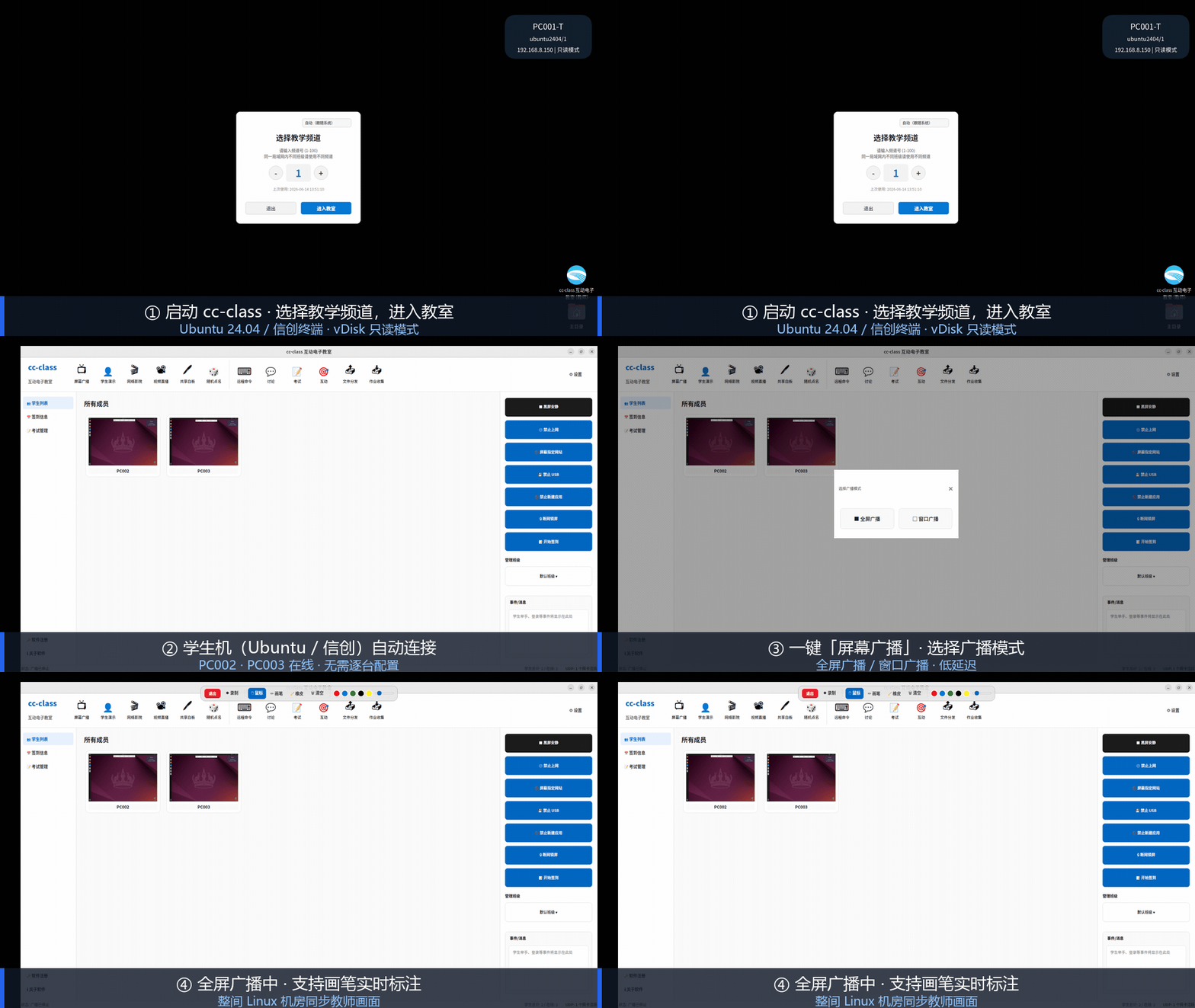
cc-class live demonstration of one-click screen broadcasting in a Ubuntu domestic computer lab.
Ubuntu one-click screen broadcastThe teacher side launches cc-class on Ubuntu 24.04, student machines automatically come online, one-click full-screen broadcasting (real-machine recording).
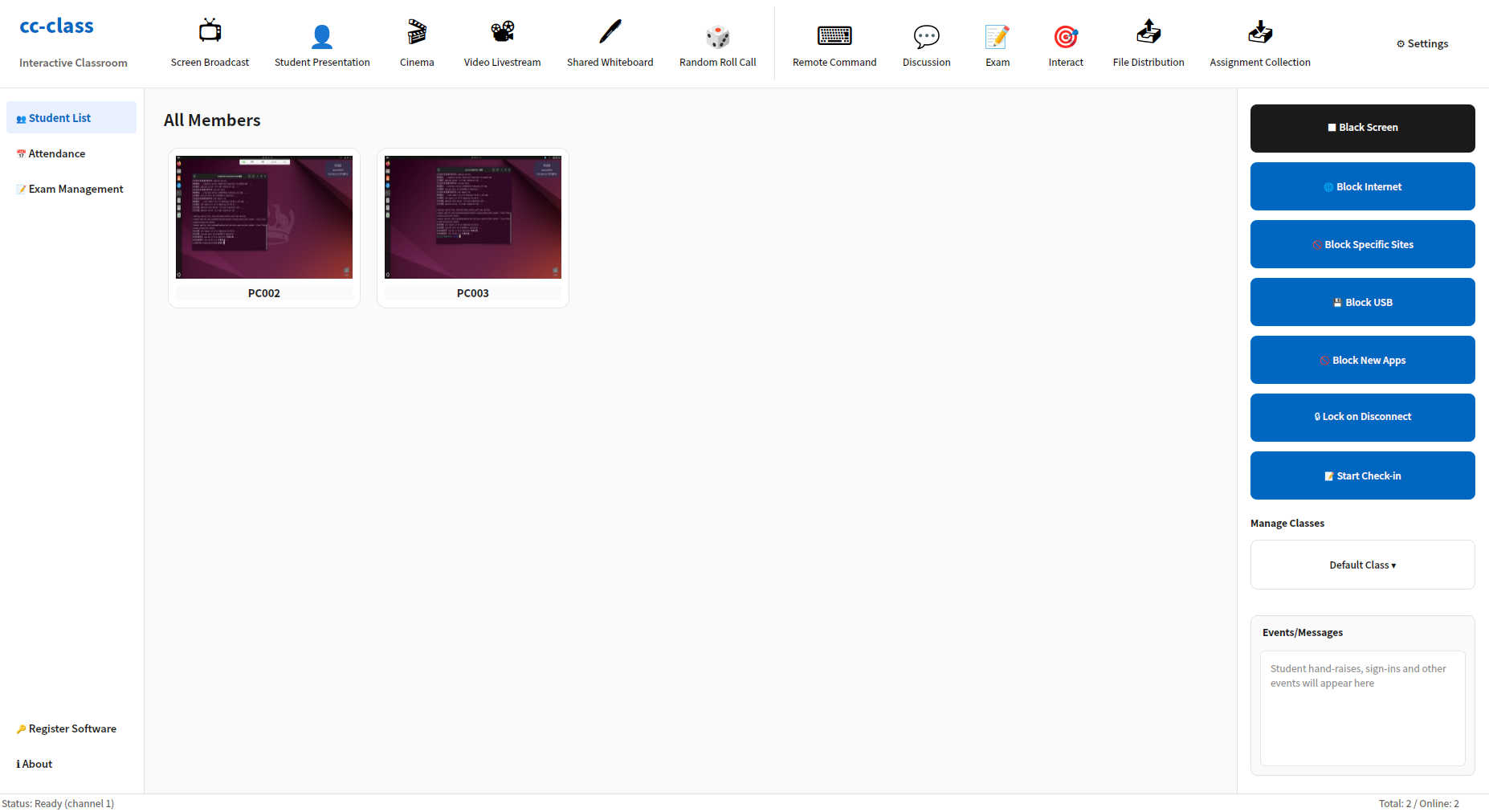
cc-class domestic electronic classroom teacher client managing Ubuntu student machine interface
Teacher-side consoleThe teacher client manages the entire Ubuntu lab, real-time thumbnail monitoring, one-click control for black screen / lock network / disable USB.
cc-class teacher console monitoring live screen thumbnails of Ubuntu student machines PC002 and PC003
Ubuntu student monitoringStudent machines come online automatically under their computer names (PC002 / PC003); the teacher console shows a live screen thumbnail of every Ubuntu desktop, so you can see what each student is doing at a glance.
cc-class selects the teaching channel to connect to domestic student machines.
Teaching channelMultiple classes in the same lab use different channels; student clients only connect to the teacher's machine on the same channel, with automatic discovery and no IP configuration needed.
One-click black screen lock for domestic student computers
One-Click Screen Blackout & SilenceUnified lock of student screens and keyboard/mouse input, displaying 'Screen locked by teacher', quickly focusing attention.
Real Classroom Usage ScenariosVideo demonstration of the entire cc-class teaching process in a domestic platform computer lab, broadcasting, interaction, and assignment distribution/collection completed seamlessly.

Core Features

A fully featured interactive electronic classroom management system that meets common needs such as teaching, monitoring, control, and assignment distribution and collection

Screen Broadcast

Real-time screen sharing with full-screen or regional broadcast, smooth playback of video, 3D, and CAD, and the ability to lock student input devices.

Student Demonstration

Broadcast any student's screen to the whole class for peer presentations and demos, enabling student-to-student interactive teaching.

Voice Teaching

Teacher audio broadcasting and two-way voice communication—broadcast voice to students or talk with them in real time.

Network Cinema

Stream video to student screens; playback on the teacher's end syncs in real time to all student terminals.

Screen Watching

The grid view displays thumbnails of all student screens in real time. Double-click to enlarge or directly take over, promptly detect violations and intervene.

Endpoint Group Control

The teacher's keyboard and mouse operations on the local machine are mirrored in real time to all selected student machines and executed synchronously, allowing unified software installation, environment configuration, and training steps. Different resolutions between teacher and students are automatically scaled proportionally, and Ctrl+Alt+G can be used to exit at any time.

QR code live stream (no client needed)

Teacher end generates a QR code with one click. Mobile phones, tablets, and laptops can scan the code on the same network to watch via browser without installing any client. The screen includes computer audio, and the viewing page allows downloading materials and submitting assignments.

Prevent student endpoint disconnection

Comes with a Microsoft officially signed kernel driver; even if the student is a local administrator, they cannot end the student client in Task Manager. No need to enable test signing or disable Secure Boot; it is enabled by default after installation.

Remote Takeover & Control

Synchronized keyboard-and-mouse control of student desktops supports a hands-on guidance mode, letting you tutor and troubleshoot without leaving the teacher's machine.

Distribute materials / collect and return assignments

Materials are distributed with one click, and homework, reports, and exam files are automatically collected and archived by class / student ID / seat, with resumable transfer.

Batch deployment of multiple drives

Select courseware from multiple drives/paths on the teacher's machine simultaneously and deliver it in bulk to student machines in one operation.

One-Click Screen Blackout & Silence

Centrally lock students' displays and keyboard/mouse input, disable network / USB, and prevent students from terminating the client process.

Check-In & Attendance

After students enter their name, student ID and class, information is collected and files organized automatically, then archived into the matching folder.

Online Messages

Text chat between teachers and students supports group or private chat, and teachers can toggle the student-to-student chat feature on or off.

Remote commands / power

Execute remote commands, launch specified programs, and open documents, with support for power management such as remote shutdown, restart, and wake-up.

cc-class classroom management software complete feature list

The above are the fifteen most commonly used items. Below, each function of the teacher and student ends is listed one by one with a description: 179 functions, divided into 15 groups. This checklist can be used directly for selection comparison, writing technical requirements, and making training manuals.

15Feature Grouping
179feature by feature
2Client (Teacher Client / Student Client)
1Universal installation package

Screen Broadcast and Teaching Demonstration 21 项

A suite of functions for projecting the screen to students. Screen broadcast, demonstration, live streaming, and cinema mode – only one runs at a time; starting a new one automatically stops the previous one, so they never conflict.

Screen Broadcast
Broadcast the teacher's entire desktop to the whole class in real time, student PCs automatically pop up a full-screen view
Window broadcast (bound window)
Broadcast only the specified window; students cannot see other content on the desktop. Suitable for demonstrating only a certain software.
Area broadcast (select screen area)
Use the mouse to select an area on the screen to broadcast only that area; you can cancel it anytime to restore full-screen broadcast.
Broadcast by list
On the main interface, click or drag to select the computers and groups to receive; if none selected, it will prompt "Select all N computers and continue" instead of silently broadcasting to the whole class.
Annotate during broadcasting
When broadcasting, an annotation toolbar appears, allowing selection of pen color/thickness, eraser, shapes, arrows, text, and highlighter; directly circle and annotate on the screen for explanation.
Annotation toolbar scales with screen ratio
Toolbar scales proportionally on 4K high-resolution screens, will not be too small to read.
Full-screen broadcast locks student keyboard and mouse
There are toggles (default on) in both the broadcast popup and broadcast settings; when receiving in full screen, student keyboard and mouse are locked, they can only watch but not interact
Student client receives in fullscreen or windowed mode
Students can receive in full-screen or switch to a window, watching the teacher's demonstration while following along.
Student demonstration
Broadcast a student's screen to the whole class, while automatically opening a remote control window for the teacher to that student, allowing the teacher to take over at any time.
Live Streaming
Live broadcast of screen + camera + audio, camera overlay as picture-in-picture at bottom right, viewers can switch sources.
Voice broadcast and two-way audio
Broadcast voice to the whole class, and also have real-time conversations with students
Network Cinema
Synchronously play a video file (mp4 / mkv / avi / mov / wmv) to the entire class, while the teacher opens a separate window to monitor progress.
Shared whiteboard
Open a real-time shared drawing board; the teacher writes and draws, and the student side sees it synchronously, equivalent to an electronic blackboard.
Student collaborative whiteboard drawing
One-click on the whiteboard toolbar allows students to draw on the whiteboard as well; each student's strokes are displayed in real-time with a distinct color to the whole class, and permission can be revoked at any time.
File Download Panel During Broadcast
On the broadcast screen, provide students with a file list. Materials distributed by the teacher during class can be downloaded by students with a click.
Submit Homework Panel During Broadcast
Students can directly fill in their student ID, name, and class in the broadcast screen, and drag and drop files to submit homework, without exiting the broadcast.
Transfer method optional
Three modes: broadcast, multicast, unicast. Choose one based on the computer lab switch and network policy.
Desktop Recording
One-click start or stop recording teacher's screen to file; can be played back after class or distributed as material to the whole class.
Student note screenshot
Students press F2 to take a screenshot for notes while watching a broadcast, automatically saved to "Documents / Class Notes".
Adjustable broadcast parameters
Resolution, frame rate, and bitrate are adjusted according to the computer lab network conditions, balancing clarity and smoothness
Auto-exclude demo machines
When broadcasting, the machine currently doing student demonstration is automatically excluded to avoid looping the screen back.
Terminal group control (one-to-many synchronous operation) 11 项

Whatever the teacher does on their own machine, the selected student machines will synchronously follow—unified software installation, unified environment configuration, unified training steps, done for the whole class at once, no need to go to each machine.

Real-time Keyboard and Mouse Mirroring
The teacher's local mouse movements, clicks, scrolls, and keystrokes are replicated in real-time to each selected student PC and replayed on their desktops.
Controlled by list
Same selection method as screen broadcast: first select computers or groups on the main interface, no selection means no action, never implicitly apply to the whole class.
Automatic proportional mapping for different resolutions
Coordinates are normalized as percentages of the screen and sent; student machines render them according to their own resolution. Even if teacher and student resolutions differ, there will be no click offset.
Initial cursor alignment
When group control is enabled, the teacher's current cursor position is synchronized immediately, without needing to wiggle the mouse first to align.
Block student's local keyboard and mouse
During group control, students' own keyboards and mice are blocked; only the teacher's operations take effect, and students cannot interfere.
Teacher's local machine unrestricted
Teacher-end collection only monitors without blocking; the teacher operates normally on their own machine and will not be obstructed by the group control they initiated.
Global escape hotkey
Ctrl+Alt+G to end group control at any time, even if the main window is covered by the demo program and cannot be clicked, you can still exit
Floating end button not mirrored
When the teacher clicks the "End Group Control" window, mouse events in that area are not replicated to the entire class, and the student desktop will not receive an accidental click.
Three-fold self-protection on student endpoint
Automatically unfreeze if no group control packet is received within 10 seconds. Disconnection or exit releases the lock. If forcibly killed, the keyboard and mouse are restored according to the disk list on next boot – student machines are never permanently locked.
Automatic retransmission for late arrival and reconnection
Machines that were not powered on at the time but are on the list will be automatically included when they come online later; machines not on the list will never be included even if they come online at that time.
Back Pressure Protection
When a student's network is congested, only pure movement events are dropped; clicks and key presses are not lost, ensuring operations remain correct.

Scan to live stream · watch without client 9 项

The teacher console has a built-in live streaming service that generates a QR code with one click. Mobile phones, tablets, and laptops without the student client can scan the QR code on the same classroom network to watch in a browser—view-only, no control rights.

No installation, no plugin required
No app or browser plugin required on the viewing end; WeChat's built-in browser can play directly.
Screen with computer audio
Live broadcast synchronously carries the teacher's PC audio; when no sound card is detected, the status bar clearly prompts 'No audio output device'.
Camera picture-in-picture
The camera image is overlaid in the bottom-right corner. The viewer can switch between the computer screen and the camera feed.
Download materials from view page
The file panel at the top right of the viewing page lists materials distributed by the teacher during class, which can be downloaded directly on mobile phones.
Submit homework online from the viewing page
The viewer fills in student ID, name, and class, then submits the homework file. Files are archived in individual directories per student and appear in the teacher's assignment collection panel.
Classroom LAN only
Accessible only within the same classroom network. The viewing end is purely for viewing, with no control permissions.
Live streaming status indicator
The 'Live' indicator on the teacher console's main interface stays on, and displays the real-time count of devices watching
Hide window and continue live streaming
Collapsing the QR code window does not affect the live stream; click 'Live' again to recall it at any time.

Classroom Interaction 16 项

Transform "teacher talks, students listen" into interactive sessions: roll call, quick answer, voting, discussion, push courseware, send bullet comments; most actions are delivered to the whole class in real time.

Random Roll Call
Randomly select a student with a scrolling animation, which is synchronized on the student side; after selection, one-click to broadcast the student's screen to the whole class.
Classroom Quick Answer
A quick-answer button appears on the student side; whoever presses it first is seen by the teacher as the first to answer
Classroom Polling
Create single-choice or multiple-choice poll questions; students answer and teachers see vote counts in real time
Peer Review
Initiate peer grading among students
Discussion / Chat
Classroom chat room supporting text, emojis, images, files, screenshots. Supports Ctrl+V to paste images and drag-and-drop to send.
Allow / Prohibit Student Discussion
One-click control for students' speaking permission
Group discussion management
Create and manage discussion groups, can switch between group discussion and full-group discussion
Push courseware
Select courseware (ppt/pptx/pdf/doc/docx/txt/image/mp4/avi/mp3/zip/rar/7z) and push with one click to selected student PCs, then auto-open
Courseware resource library
Manage common courseware library for easy repeated distribution
Course objectives and outline
Set the title, objectives, and outline of this lesson, visible to students
Reward Leaderboard
Display student classroom points ranking
Classroom data reports
Collect classroom data such as hand-raising, quick response, voting, and chat
Send Danmaku
Input text and broadcast a scrolling bullet screen to the entire class
Hand raising and help requests
The student toolbar has a one-click hand-raising button; the teacher's end shows the hand-raising status on the student's card; the help request entry can be toggled by the teacher.
AI-powered question generation
Generate questions by knowledge point, question type, and difficulty, and add them to a test paper with one click.
AI grading of subjective questions
Provide scoring and comment suggestions for students' subjective answers, and let the teacher review and finalize the scores.

Online exams 8 项

Complete chain from question creation, distribution, timing, collection, scoring, to report export. Teachers can see each student's progress in real time.

Graphical question editor
Create and modify questions directly on the teacher interface, no need to pre-write in a table and import.
Import Exam Papers (CSV)
Import question banks filled in according to a template at once; the template can be downloaded from the exam management panel.
Five question types
Single choice, multiple choice, true/false, fill-in-the-blank, short answer
Start / End Exam
Tests are distributed to selected students and timing starts; upon completion, the exam stops, papers are collected, and scores are generated.
Exam duration and countdown
Set the exam duration; the student end displays the subject, class, and countdown at the top; when time is up, the exam is automatically submitted and closed.
Real-time progress monitoring of quiz answers
The exam management panel displays in real time each student's answer progress (answered / total questions) and score
Statistics by question accuracy
View the class's correct answer rate for each question, so you know at a glance which question to focus on during review.
Export scores to Excel
Export exam results to a table with one click

File distribution and assignment collection 13 项

One-click distribution of materials to designated locations on each machine; homework collected per student and automatically archived; progress visible per machine; the slow one does not hold back the whole class.

File Distribution
Add files (drag-and-drop supported) → Select target path on student PCs (Desktop / C: / D: / E: / Custom) → Optionally set to auto-run after distribution with parameters.
Batch deployment of multiple drives
Select files from multiple drives and paths on the teacher's PC at once, and batch deliver them to the same target directory on student PCs.
HTTP point-to-multipoint direct transfer
Distribution uses a separate HTTP channel. Broadcasting and distributing simultaneously do not affect each other.
Three Sending Methods
Broadcast, multicast, unicast selectable from a dropdown; choose one based on the computer lab network.
Adaptive speed limiting
AIMD token bucket automatically adjusts the rate based on real-time conditions, and will not use up the full bandwidth and crash the entire class.
Segmented reconciliation and missing block reissue
Check section by section, fill in what's missing, won't get stuck at 99%.
Distribution progress visible per endpoint
A dialog box shows the receiving progress and status of each file on each student machine. Failed items can be resent.
Distribution window can be minimized
Minimize the window; the transfer continues in the background, allowing the teacher to continue lecturing.
Student endpoint receiving list
The student machine pops up a receipt list; click to directly open the received file.
Assignment Collection
Initiate a naming collection task, the student toolbar's 'Submit Assignment' is activated, and the teacher side can view each student's submission status in real time and download.
Archiving by User
Submitted content is archived in separate directories by student ID/name/computer name+IP. The teacher can package it into a ZIP with one click.
Assignment submission content
Students can instantly take screenshots, upload images, or drag in assignment files, and submit them all together.
Configurable homework collection path and naming
The collection directory and file naming conventions can be configured according to the school's archiving habits.

Classroom Control 17 项

On the right side is a column of switches. Click once to enable, click again to restore. Red indicates that it is currently under control. Most of them apply to all students.

Black Screen Silent
All screens in the class go black with keyboard and mouse locked; a teacher-set message is displayed on screen. Click to cancel blackout and restore.
Customizable black screen prompt message
Five built-in common prompts available for direct use, or you can write your own.
Three Unlocking Methods
Manual unlock, automatic unlock after a duration (N minutes later), automatic unlock at a specific time (by what time).
Automatic lock for newly connected devices during blackout
Student PCs that start up midway automatically join the black screen and are released simultaneously with the whole class
disable internet access
Cut off student PCs' external network access, one-click restore
Block specific websites
Restrict websites using blacklist or whitelist mode, maintain domain names in a dialog box
Browser keyword blocking
Set keywords, when the student browser hits, it will close the browser or pop up a warning, two options available
Program restrictions (block games/chat tools)
Deploy program blacklist, automatically terminate programs that match on student machines, one-click release
Disable USB
Disable USB storage; even if students plug it in, it won't work.
Four-level USB flash drive control
Open / Read-only / Execute disabled / Fully blocked. Select one option based on course needs.
Block new application creation
Lock students so they can only use the currently open programs and cannot start new ones.
Offline Lock Screen
Once a student disconnects from the teacher console, the screen automatically locks, preventing cable pulling or exiting to evade control; when reconnected, it automatically unlocks, and the number of locked screens is displayed at the top.
Application and URL monitoring
Monitor which programs students run and which websites they visit, with selectable toggles.
Print Control
Allow or disallow student printing
Note screenshots and help request toggle
Two independent switches determine whether students can press F2 to take notes and whether they can ask for help
Single client offline
Disconnect or restore network for a single student PC without affecting others.
Batch distribution of remote settings
Batch push student-side settings such as desktop background, theme, access channel, volume, and exit password; the background image can be directly selected and pushed.

Anti-deregistration and process protection on student endpoints 9 项

In computer labs, students often have local administrator privileges on their machines, which cannot be blocked at the user level. cc-class comes with a kernel driver for true antivirus/anti-kill, and it's enabled by default after installation.

Kernel-level process anti-kill
Built-in ccprotect kernel driver. Even if students have administrator privileges, they cannot terminate the student client process in Task Manager.
Microsoft officially signed driver
attestation formal signature (not test signature), no need to enable testsigning, no need to disable Secure Boot, no need to install self-signed root certificate
Auto-select driver by system
The installation package includes drivers for both Win7 and Win10. During deployment, the appropriate driver is automatically selected based on the system version.
Enabled by Default
After installation on the student client, it is deployed on boot without needing to configure each machine individually. The teacher's end can also be remotely shut down.
Automatic degradation on missing driver
If the driver is not installed or fails to load, it automatically falls back to user-mode watchdog, while all other functions remain normal.
Protect only own people
Protected programs are built-in whitelist in the driver; other admin programs cannot make the driver shield itself.
Protect cloud desktop clients together
The core process of the vDisk cloud desktop client is also included in the anti-kill whitelist to prevent students from unmanaging.
Process Self-Healing
The background service monitors the student client, automatically restarting it after a crash or shutdown, ensuring uninterrupted classroom control.
Disable protection before upgrade or uninstall
The installation and uninstallation process stops the driver first before moving the process; normal upgrades and uninstalls are not blocked by its own protection.

Monitor and operate on individual student 15 项

In the middle student area, each machine has a card for a quick overview of the entire class. Single-click to select, right-click to bring up the context menu, double-click to directly remote control.

Real-time thumbnail monitoring
Each student card displays a real-time thumbnail of the student's screen and marks the status: online, hand raised, or presenting.
Adjustable card size
The "Zoom In/Out" at the bottom adjusts card size between 80%–160%. The computer lab projector and 4K all-in-one are adjusted separately, and settings are remembered.
Two arrangement methods
Default sorted by seat (IP), can switch to alphabetical order A→Z or reverse Z→A with one click.
Top Search Positioning
The top search bar can search for functions and computer names, quickly locating when there are many machines.
Group Teaching
Divide students into different groups; many operations can be applied only to a specific group.
Remote Control
Double-click a student card to open a remote control window, take over the student's mouse and keyboard, and perform operations or demonstrations on their behalf.
Instant discussion
One-on-one chat with a specific student
Capture current screen
Save the student's current screen as an image in 'Documents / Classroom Snapshots' for evidence or as an example.
Set as / Cancel Group Leader
Assign or unassign a student as group leader
Classroom evaluation: add/subtract points
6 positive items (e.g., active participation +1, max +3), 4 negative items (e.g., distracted −1). Customizable with +N / −N.
Start / Cancel Demonstration
Show the student's screen to the whole class, or stop the demonstration
Cancel hand-raising
Clear the student's hand-raising status
Clear offline computers
One-click clear offline cards, after replacing machines in the computer lab, the list will not retain old records
Select target before operation
All actions targeting computers require selecting a machine or group first. If none selected, a confirmation dialog pops up to prevent accidentally affecting the entire class.
Bottom status bar
Current teaching channel and online/total stations at a glance

Check-in, attendance, and classes 6 项

One click per class session; who came, which machine they used, and when they arrived, all recorded and exportable.

start check-in
Click 'Start Check-in' and enter the class name for this lesson; the student client immediately pops up a full-screen check-in window.
Student fill-in items
Name, class, student ID; filled once and remembered, automatically resubmitted on reconnection
Sign-in sheet fields
Time, student ID, name, computer name, MAC, and IP are displayed in real time on the check-in information tab.
Export to Excel
One-click export of attendance sheet for this session
Historical sign-in sessions
Save and view attendance records of previous sessions.
class management
Create or switch class names, group students by class for easy attendance and statistics; the selection is remembered.

Remote commands and power 7 项

System-level remote operations; irreversible actions such as shutdown, restart, and kill process require selecting the target machine first, then a second confirmation.

Launch application
Select from the preset list (Notepad, Paint, Calculator, Command Prompt, etc.) for remote execution, or add custom program paths and parameters.
Open Webpage
Enter a URL, uniformly open it in the browsers of selected student PCs
Manage applications
View running processes on student PCs and terminate them
Close specific processes
Enter process names to batch terminate, e.g., chrome.exe
Close all desktop applications
One-click to close all desktop programs on student computers for quick cleanup
Remote power on (Wake-on-LAN)
Send WoL magic packet to offline machines to wake them up; requires motherboard and network card support
Shutdown / Restart
Shut down or restart the selected student computers, with a confirmation prompt before execution

Cloud desktop collaboration and network parameter distribution 8 项

When used with vDisk cloud desktop, the teacher endpoint also serves as the network configuration console for the computer lab: it broadcasts to discover endpoints, and deploys the entire set of network parameters by MAC address in batches, regardless of whether the current IP of the endpoint is correct.

Broadcast discovery of endpoints
One-click broadcast scan, listing all cloud desktop endpoints in the LAN along with computer name, MAC, and current IP in a table.
Deploy by MAC address
Configuration delivered via MAC, without depending on whether the current IP of the endpoint is correct or on the same subnet as the teacher's PC.
Batch distribute network parameters
Fill in the server IP, start IP, subnet mask, gateway, and DNS once, apply to all endpoints, and automatically assign IP addresses in sequence.
Endpoint password verification
Verify the endpoint password before deployment. If the password is incorrect, it will not be written, to avoid misconfiguration to other classrooms.
Take effect immediately and persist
Parameters take effect immediately after writing to the endpoint and are retained, no need to restart or manually adjust each device
Per-Device Status Echo
The table displays results for each PC: success, password verification failure, driver read/write failure, no cloud desktop driver, etc.
Can recover even if network configuration is messed up
Scenarios where conventional software cannot connect to the endpoint due to incorrect IP configuration or unreachable network segment can still be fixed in batches.
Cloud desktop local information settings
Remotely set the local machine information of the cloud desktop endpoint, and deploy network parameters through the same entry point.

Student endpoint (zero-operation design) 8 项

The student client is designed so that 'students do nothing': auto-run on boot, auto-find the teacher's PC, auto-reconnect on disconnect.

Zero-operation automatic online
Starts automatically on boot, connects automatically, students barely notice its presence
Auto-detect teacher's computer
The teacher end broadcasts a beacon every second, and the student end listens. When the channel matches, they connect automatically. No need to manually enter the teacher's IP throughout.
Automatic reporting upon going online
Once connected, it automatically reports the local hostname, login username, and MAC address, and then appears in the teacher's student list.
Auto-reconnect on disconnection
Reconnect to the last successfully connected teacher PC every 3 seconds, with unlimited retries; last teacher PC info is saved to disk, and it attempts to reconnect on startup.
Top auto-hide toolbar
Move the mouse to the top edge of the screen to evoke, including connection status, hand-raising, help request, homework submission, discussion
Toolbar slide in/out
On Windows, the toolbar slides out and back from the screen edge, no flickering or jumping; can be dragged to snap to another edge.
Single Instance Mutex
Global mutual exclusion across users prevents two student clients from running on the same machine and conflicting.
Auto Exit on Wrong Installation
If the student client is accidentally installed on the teacher's machine, it will self-detect and exit, avoiding role conflict.

Transmission and image quality engineering 12 项

Dozens of machines in a lab receiving screens simultaneously—whether it lags depends entirely on the transmission layer. Below are the specific measures already implemented in the product, not just adjectives.

Adaptive frame rate and quality (QoS)
Automatically adjust between frame rate and clarity based on real-time packet loss and backlog; when network is poor, prioritize smoothness.
Motion-adaptive video quality grading
For fast-changing areas, reduce quality to ensure smoothness; for static areas, maintain clarity so text is readable and video is not blurry.
CRC32 hardware hash differencing
Calculate hash block by block using hardware instructions, only send the actually changed blocks; static images consume almost no bandwidth.
Screen capture and encoding dual-stage pipeline
Capturing the next frame overlaps with encoding the current frame, resulting in more stable frame output on the teacher end.
libjpeg-turbo direct encoding/decoding
Teacher-side encoding and student-side decoding both bypass the common image library pipeline, allowing the same machine to deliver a few more frames.
Parallel decoding of multiple tiles
The client uses a thread pool to decode multiple screens simultaneously, so even older student PCs with low specifications can keep up.
X11 SHM double-buffered zero-copy
Linux screen capture uses shared memory double buffering, no longer deep-copies the entire screen per frame, significantly reducing load on domestic systems
Lightweight XOR FEC
Every 4 data fragments come with 1 parity fragment; if one packet is lost, it can be recovered without retransmission, reducing screen tearing.
AIMD adaptive transmission rate
Fast queuing on gigabit networks, automatic convergence on 100-megabit networks; won't flood and bring down the entire computer lab
UDP send independent thread
Packet sending does not block the UI thread; during broadcast, the teacher's interface remains responsive.
Keyframe TCP fallback
The first frame and key frames of the broadcast use a reliable channel, so students will not experience a black screen or long wait for the initial image.
Keep-alive during idle period
Even if the screen remains static for a long time, no large black blocks, screen flickering, or afterimages appear.

Deployment, role determination, and runtime environment 19 项

One installation package deployed to all machines. After installation, the software determines which machine is the teacher's and which is the student's based on the computer name, so administrators don't need to perform different operations on each machine.

Single installer for all
The same installation package is deployed to all machines, no need to distinguish between teacher version and student version, and no need to select specific machines.
Automatic role assignment by computer name
Names containing teacher / jiaoshi / laoshi / laoshi, or with -t, _t, tea teacher marker segments, are identified as teacher machines; the rest are student machines.
No misjudgment
Uses independent marker segments for matching; names like -test, team, host-time will not be mistakenly identified as teacher machines.
Cloud desktop computer name priority
The cloud desktop environment uses the cloud desktop computer name issued by the platform, which takes precedence over the OS hostname.
Consistent judgment across three endpoints
Teacher console, student console, and installer all have identical judgment logic, so the three sides never produce conflicting results
Automatic desktop icon processing
Automatically create or clean up desktop shortcuts based on roles; student machines intentionally do not place icons by design. On Linux, automatically set as trusted to avoid untrusted launcher prompts.
Rename to change role
After changing the computer name, just restart. The daemon automatically re-evaluates the role and rebuilds the icons without reinstallation.
Windows installation
Windows 10 / 11 64-bit, the installer automatically configures the firewall to allow required ports.
Linux / domestic IT stack installation
Ubuntu 20.04 / 22.04 / 24.04 and domestic systems such as UOS and Kylin, providing .deb online and offline installation packages and systemd auto-start on boot.
Domestic IT stack naming package
Separate naming packages for UOS V20 and Kylin V10, directly pick the corresponding one on-site based on the system.
Multi-Architecture Coverage
x86_64 (including Hygon, Zhaoxin), ARM64 (Phytium, Kunpeng), and Loongson loongarch64 old world ABI (corresponding to UOS Loongson edition / Kylin Loongson edition)
Offline Installation
The offline installation package includes dependencies, so it can be installed even if the computer lab has no external network source.
Cross-platform hybrid networking
Windows and domestic OS teacher and student clients can be mixed, broadcast, monitoring, group control, takeover, file distribution functions are consistently available.
Xorg Session Auto Configuration
Installation包自动写入 WaylandEnable=false,避开 Wayland 下截屏Black Screen与键鼠注入失效的坑
Teaching channels 1–100
Multiple classes in the same computer lab use separate channels simultaneously without interference. Selecting an occupied channel shows a conflict warning.
Fix ports and allow traffic
Broadcast uses UDP 11100, control uses TCP 11100–11105; just allow these ports in the computer lab network.
Multilingual interface
Automatically switches between Simplified Chinese, Traditional Chinese, English, Japanese, Korean, German, French, Spanish, and Russian interfaces following the system language, with identical button positions.
Student PC list access
Export or import the current student PC list as JSON, quickly restore after replacing machines in a fixed computer lab.
Trial and licensing
Self-service QR code registration for trial, can be extended three times, no limit on points; long-term license uses machine code on the interface to exchange for license code

Plain text version available upon request Full Feature List (Plain Text); See step-by-step operation steps and illustrations cc-class user manual。

Technical Features

Built on an advanced technical architecture for a stable, reliable system

UDP Broadcast Discovery

UDP broadcast auto-discovers the teacher console; student stations automatically search and connect on startup, with no manual IP configuration required.

Efficient TCP transmission

The TCP protocol transmits control commands and data and supports chunked transfer of large files, ensuring reliability and integrity.

Automatic Reconnection

Automatic reconnection on network drop with a 3-second detection mechanism ensures a stable connection even during network fluctuations.

Crash Recovery

Automatically restores the connection after a crash, preserving class information and session state, and resumes working state after a restart.

Low-Latency Transmission

LAN screen broadcast latency under 100 ms, supporting 20–60 FPS for smooth multimedia playback.

Cross-Platform Support

Supports Windows 10/11, Ubuntu, UOS, and Kylin, developed with Qt6, with a unified interface and consistent functionality. The teacher and student clients can be mixed across platforms in the same network.

Adaptive quality and anti-packet-loss

Automatically adjusts frame rate and quality based on real-time packet loss and backlog; reduces quality in motion areas to maintain smoothness. Every 4 fragments are accompanied by 1 XOR parity fragment, so a lost packet can be recovered without retransmission.

Kernel-level process protection

The ccprotect driver comes with Microsoft Attestation official signature. Even if the student is a local administrator, they cannot terminate the student client; when the driver is not loaded, it automatically degrades to watchdog protection.

Use Cases

Suitable for all kinds of teaching and training scenarios

School Lab Teaching

University · K-12 computer labs

Supports a complete teaching workflow including screen broadcast, file distribution and assignment collection, keeping lab instruction efficient and orderly.

Screen BroadcastFile DistributionAssignment Collection
Multimedia Classroom

Video · Demonstration · Interaction

Supports video playback, screen sharing, remote control, and more, enhancing teaching outcomes in multimedia classrooms.

Video PlaybackScreen SharingRemote Control
Exam Proctoring

Computer-based exams · Proctoring

Supports screen monitoring, blackout-and-silence, file collection, and more to ensure exam fairness and order.

Screen WatchingBlack-Screen SilenceFile Collection
Corporate Training

In-house training · Skills training

Supports remote demonstration, file sharing, online communication and more—suitable for corporate in-house and skills training.

Remote DemonstrationFile SharingOnline Chat

Linux / Xinchuang special topic

Explore cc-class's rollout solution for Xinchuang computer labs by key capability

Success Stories

Real Deployment Site Snapshots

To protect client privacy, case images do not display client names

Try the cc-class interactive electronic classroom software now

Unified installation with no separate student/teacher images, making teaching management simpler and more efficient.

Page update date: 2026-06-30